I Used AI to Clean Up My Chaotic Desktop: Complete Guide to Qwen Code Cowork Use Cases
A free and open-source AI work assistant that helps you organize files, batch rename, clean up storage space, and automate daily tasks.
Does your desktop look like this too? 👇
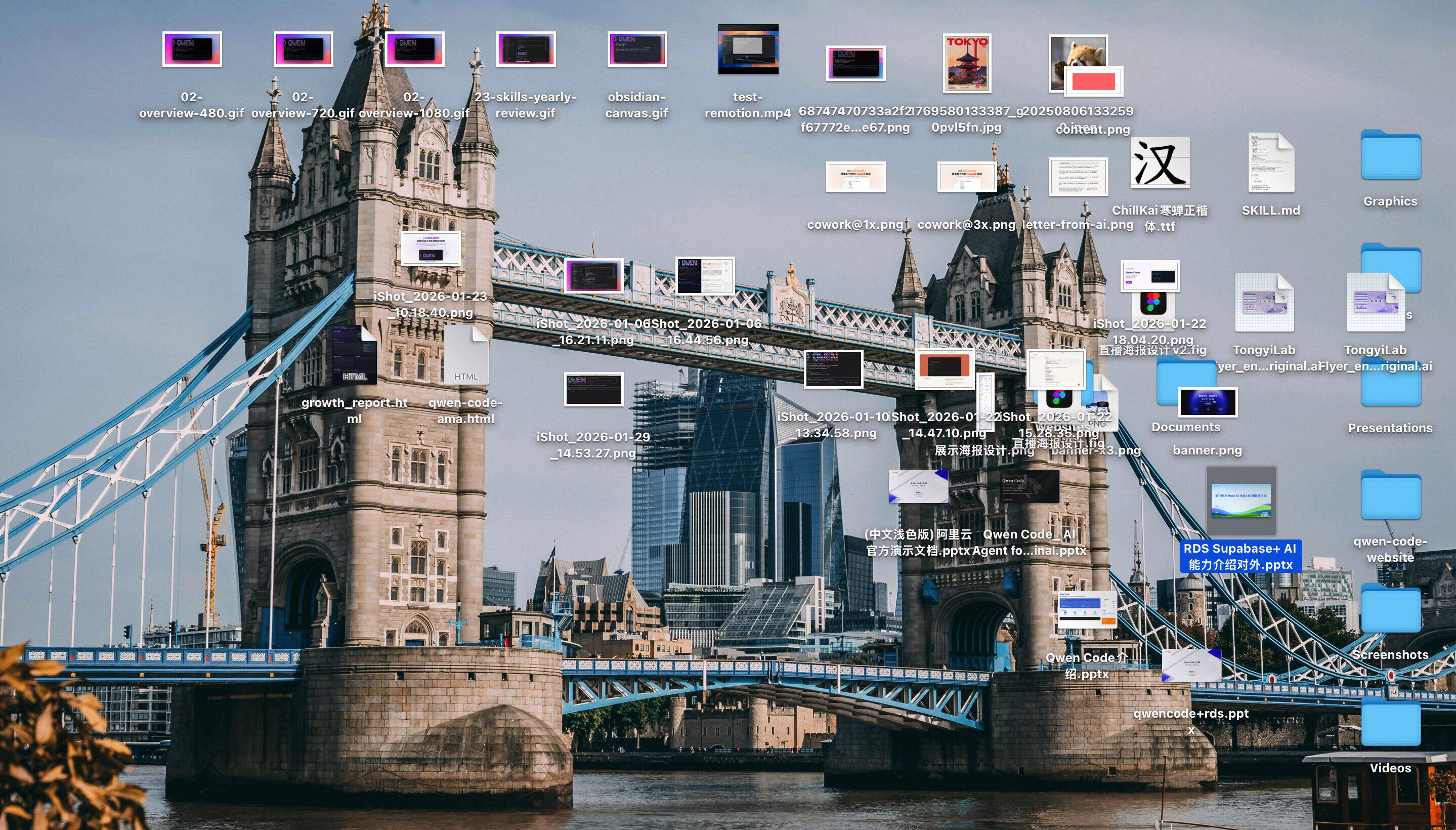
- Screenshot_20231015, Screenshot_20231016, Screenshot_20231017…
- New Folder, New Folder (1), New Folder (2)…
- WeChat_Image_20240101, WeChat_Image_20240102…
Every time you want to find a file, it’s like digging for treasure in a garbage dump. You clearly remember saving it, but just can’t find it. What’s even more frustrating is that every few months, you get a system notification: Disk Space Full.
I know I should organize it, but—
Organizing files is something that always stays on the TODO List but never gets executed.
Until I discovered Qwen Code Cowork, an AI assistant that truly helps you get things done.
What is Qwen Code Cowork?
Simply put, it’s a free and open-source desktop AI assistant built on the Qwen Code SDK.
But it’s not just a chat box—it’s an AI that can actually get its hands dirty and help you work:
| Capability | Description |
|---|---|
| 📝 Write and edit code | Supports any programming language |
| 📁 Manage files | Create, move, rename, organize |
| ⚡ Run commands | Build, test, deploy |
| 💬 Answer questions | About your codebase or any other questions |
| 🔧 Automate tasks | As long as you can describe it in natural language |
The key point is: completely free, open-source and controllable, local data storage.
In comparison, Claude Code is only available to Max subscribers at $100-200 per month, while Qwen Code Cowork offers equivalent capabilities at zero cost.
Complete Use Cases Guide
Below are several super practical scenarios I discovered through actual use, each with specific operation demonstrations.
Scenario 1: Organize Your Chaotic Desktop / Downloads Folder
The desktop and downloads folder are practically digital dumping grounds, with screenshots, documents, installation packages, and temporary files all mixed together. Every time you want to find something, you have to dig for ages. It looks annoying, but manually organizing is too time-consuming.
How Cowork helps you:
Just tell it: “Help me organize my desktop, categorize by file type, put screenshots in the screenshots folder, documents in the documents folder, installation packages in the installation packages folder”
It will:
- First scan your desktop and list all files
- Give you a preview of the organization plan
- After your confirmation, automatically execute the categorization and moving
Pro tip: Use Plan mode to let the AI plan first, confirm the plan before executing—this is safer and more controllable.
[Screen recording demo 👇]
Scenario 2: Batch Rename Files (Rename Photos by Date)
Photos exported from phones have messy names like IMG_0001, IMG_0002… completely indistinguishable as to when they were taken. You want to rename them in a format like “2024-01-15_Beach_Sunset”, but manually changing hundreds of photos would take forever.
How Cowork helps you:
Tell it: “Rename the photos in this folder by shooting date, format is YYYY-MM-DD_SequentialNumber”
It will:
- Read the EXIF information (shooting date) of each photo
- Generate new filenames according to your specified format
- Preview all rename operations
- Execute in batch after confirmation
[Screen recording demo 👇]
These are files I asked Qwen Code to simulate a demo for me, so the extensions are all txt. Now I’m asking it to uniformly remove all .txt extensions from the files.
After organizing the file types, I now need to rename all files according to my requirements. Of course, you can also further ask it to categorize them:
Scenario 3: Check Local Storage Space and Find Large Files
Your computer is warning you about insufficient disk space again, but you don’t know what’s taking up all the space. You want to clean up but fear deleting important files, and opening various cleaning software raises privacy concerns.
How Cowork helps you:
Tell it: “Help me check my computer’s storage space usage, find the 10 folders and files taking up the most space, briefly describe their contents, and whether they can be deleted and what impact deletion might have”
It will:
- Scan your disk usage
- List the files and folders taking up the most space
- Analyze which ones can be safely deleted (like caches, temporary files)
- Provide cleanup recommendations
Attention: Be sure to confirm before deleting files! It’s recommended to move to the recycle bin first, and only permanently delete after confirming everything is fine.
[Screen recording demo 👇]
Scenario 4: Note Integration and Formatting
Notes are scattered everywhere: WeChat favorites, memos, Notion, Obsidian… You want to integrate them together, but the formats are inconsistent. Manually copying and pasting requires formatting adjustments—too troublesome.
How Cowork helps you:
Tell it: “Integrate all docx files in this folder into one Markdown file, arranged by creation time, with unified formatting, and filenames displayed as level 2 headings”
It will:
- Read all file contents
- Identify and unify formats
- Sort and integrate according to your specified rules
- Generate a properly formatted Markdown file
[Screen recording demo 👇]
Not only can it merge files, but it can also split files. I won’t demonstrate that here—feel free to try it yourself ~👀
Scenario 5: Batch Process Documents (Extract PDF Content)
You’ve downloaded a bunch of PDF materials and want to extract the text for note-taking, but opening and copying them one by one is too slow. Some PDFs are scanned versions, and copying results in garbled text.
How Cowork helps you:
Tell it: “Extract the content from all PDF files in this folder and save them as corresponding markdown files”
It will:
- Traverse all PDFs in the folder
- Extract text content
- Generate corresponding txt files for each PDF
- Report processing results
[Screen recording demo 👇]
`
🚀 Quick Start
Direct Installation via Qwen Code (Recommended)
Just tell Qwen Code, and everything will be done within 3 minutes.
Help me install the cowork project and launch it, the repository address is: https://github.com/QwenLM/qwen-code-examples👇 Click to play the installation video:
Source Code Installation (Advanced)
If you want to build from source, you need to install Bun first:
# Install Bun
curl -fsSL https://bun.sh/install | bash
exec /bin/zsh

# Clone repository
git clone https://github.com/QwenLM/qwen-code-examples

# Enter directory and install
cd qwen-code-examples/apps/qwen-cowork
bun install

# Launch
bun run dev
Usage Tips
1. Make Good Use of Plan Mode
For irreversible tasks like file operations, it’s recommended to let the AI plan the solution first:
"First help me analyze the situation of this folder and give me an organization plan—don't execute directly"After confirming the plan is fine, then let it execute.
2. Specify Working Directory
You can specify a working directory when creating a session, so the AI will only operate within this directory—safer.
3. Confirmation Required for Sensitive Operations
Cowork will ask for your confirmation before sensitive operations like deletion and moving, so you don’t have to worry about accidental operations.
More Possibilities
In addition to the scenarios listed above, Qwen Code Cowork can also help you:
- 🔄 Automate daily tasks (scheduled backups, file synchronization)
- 💻 Code project management (initialize projects, install dependencies, run tests)
- 📊 Data processing (CSV conversion, data cleaning, format conversion)
- 📝 Document generation (generate documentation from code, generate README)
- 🔍 Code review (analyze code quality, identify potential issues)
As long as you can describe it in natural language, it can help you implement it.
Final Thoughts
Honestly, after the first time I used Cowork to organize my desktop, I had a sense of “finally clean” satisfaction.
Those files that had been piling up for months—AI helped me categorize and organize them in just a few minutes. Things that I used to think “I’ll do later” can now really be “done now.”
If you have similar troubles, give Qwen Code Cowork a try. After all, why do it yourself when AI can do it for you?
📌 Project Address: https://github.com/QwenLM/qwen-code-examples
If you find it useful, welcome to give the project a ⭐️ Star!
If you have questions or want to share your use cases, feel free to leave a comment below ~
🔗 Links and Resources
- GitHub: github.com/QwenLM/qwen-code
- Official Documentation: qwenlm.github.io/qwen-code-docs
Join Us!
Qwen Code cannot thrive without the co-construction of community developers or the feedback support of internal users. Our current Java SDK, VS Code extension, Chrome browser extension, and other important features were all co-built with internal partners. If you’re interested in Qwen Code, welcome to join us in building it together!
Finally, welcome to join us. The Qwen Code project is currently recruiting AI Full-Stack technical talent at all levels—resumes welcome! pomelo.lcw@alibaba-inc.com
Embrace the new era of AI Coding, starting with Qwen Code in your terminal.