Themes
Qwen Code supports a variety of themes to customize its color scheme and appearance. You can change the theme to suit your preferences via the /theme command or the "ui.theme" configuration setting.
Available Themes
Qwen Code comes with a selection of pre-defined themes, which you can list using the /theme command within the CLI:
- Dark Themes:
ANSIAtom OneAyuDefaultDraculaGitHubQwen DarkShades Of Purple
- Light Themes:
ANSI LightAyu LightDefault LightGitHub LightGoogle CodeQwen LightXcode
Changing Themes
- Enter
/themeinto Qwen Code. - A dialog or selection prompt appears, listing the available themes.
- Using the arrow keys, select a theme. Some interfaces might offer a live preview or highlight as you select.
- Confirm your selection to apply the theme.
Note: If a theme is defined in your settings.json file (either by name or by a file path), you must remove the "ui.theme" setting from the file before you can change the theme using the /theme command.
Theme Persistence
Selected themes are saved in Qwen Code’s configuration so your preference is remembered across sessions.
Auto Theme Detection
When the theme is set to "auto" (or left unset), Qwen Code automatically detects whether your terminal uses a dark or light background and selects the matching Qwen theme (Qwen Dark or Qwen Light).
How to enable
Set the theme to "auto" in settings.json:
{
  "ui": {
    "theme": "auto"
  }
}
Or select Auto in the /theme dialog. This is the default behavior when no theme is explicitly configured.
Detection methods
Qwen Code uses multiple detection methods in a fallback chain. At startup (async path), the order is:
| Priority | Method | Platform | How it works |
|---|---|---|---|
| 1 | COLORFGBG | All | Reads the COLORFGBG environment variable (set by terminals like iTerm2, rxvt, Konsole) |
| 2 | OSC 11 | All (TTY) | Sends an ESC]11;? query to the terminal and parses the background color from the response (~200ms) |
| 3 | macOS system appearance | macOS only | Runs defaults read -g AppleInterfaceStyle to check if macOS Dark Mode is active |
| 4 | Default | All | Falls back to dark theme if no method succeeds |
The first method that returns a result wins. The detected value is cached for the session so subsequent theme resolutions (e.g. reselecting Auto in the /theme dialog) stay consistent.
When to use Auto
- Most users — Auto works well if your terminal background matches your OS appearance or if your terminal sets
COLORFGBG/ supports OSC 11. - tmux / screen users — OSC 11 may not pass through multiplexers. Detection falls back to
COLORFGBGor macOS system appearance. If neither is available, the default dark theme is used. Set a specific theme if auto-detection gives the wrong result. - SSH sessions — detection depends on the remote environment. If
COLORFGBGis not forwarded and the remote terminal doesn’t respond to OSC 11, the default dark theme is used.
Custom Color Themes
Qwen Code allows you to create your own custom color themes by specifying them in your settings.json file. This gives you full control over the color palette used in the CLI.
How to Define a Custom Theme
Add a customThemes block to your user, project, or system settings.json file. Each custom theme is defined as an object with a unique name and a set of color keys. For example:
{
  "ui": {
    "customThemes": {
      "MyCustomTheme": {
        "name": "MyCustomTheme",
        "type": "custom",
        "Background": "#181818",
        ...
      }
    }
  }
}
Color keys:
BackgroundForegroundLightBlueAccentBlueAccentPurpleAccentCyanAccentGreenAccentYellowAccentRedCommentGrayDiffAdded(optional, for added lines in diffs)DiffRemoved(optional, for removed lines in diffs)DiffModified(optional, for modified lines in diffs)
Required Properties:
name(must match the key in thecustomThemesobject and be a string)type(must be the string"custom")BackgroundForegroundLightBlueAccentBlueAccentPurpleAccentCyanAccentGreenAccentYellowAccentRedCommentGray
You can use either hex codes (e.g., #FF0000) or standard CSS color names (e.g., coral, teal, blue) for any color value. See CSS color names for a full list of supported names.
You can define multiple custom themes by adding more entries to the customThemes object.
Loading Themes from a File
In addition to defining custom themes in settings.json, you can also load a theme directly from a JSON file by specifying the file path in your settings.json. This is useful for sharing themes or keeping them separate from your main configuration.
To load a theme from a file, set the ui.theme property in your settings.json to the path of your theme file:
{
  "ui": {
    "theme": "/path/to/your/theme.json"
  }
}
The theme file must be a valid JSON file that follows the same structure as a custom theme defined in settings.json.
Example my-theme.json:
{
  "name": "My File Theme",
  "type": "custom",
  "Background": "#282A36",
  "Foreground": "#F8F8F2",
  "LightBlue": "#82AAFF",
  "AccentBlue": "#61AFEF",
  "AccentPurple": "#BD93F9",
  "AccentCyan": "#8BE9FD",
  "AccentGreen": "#50FA7B",
  "AccentYellow": "#F1FA8C",
  "AccentRed": "#FF5555",
  "Comment": "#6272A4",
  "Gray": "#ABB2BF",
  "DiffAdded": "#A6E3A1",
  "DiffRemoved": "#F38BA8",
  "DiffModified": "#89B4FA",
  "GradientColors": ["#4796E4", "#847ACE", "#C3677F"]
}
Security Note: For your safety, Qwen Code will only load theme files that are located within your home directory. If you attempt to load a theme from outside your home directory, a warning will be displayed and the theme will not be loaded. This is to prevent loading potentially malicious theme files from untrusted sources.
Example Custom Theme
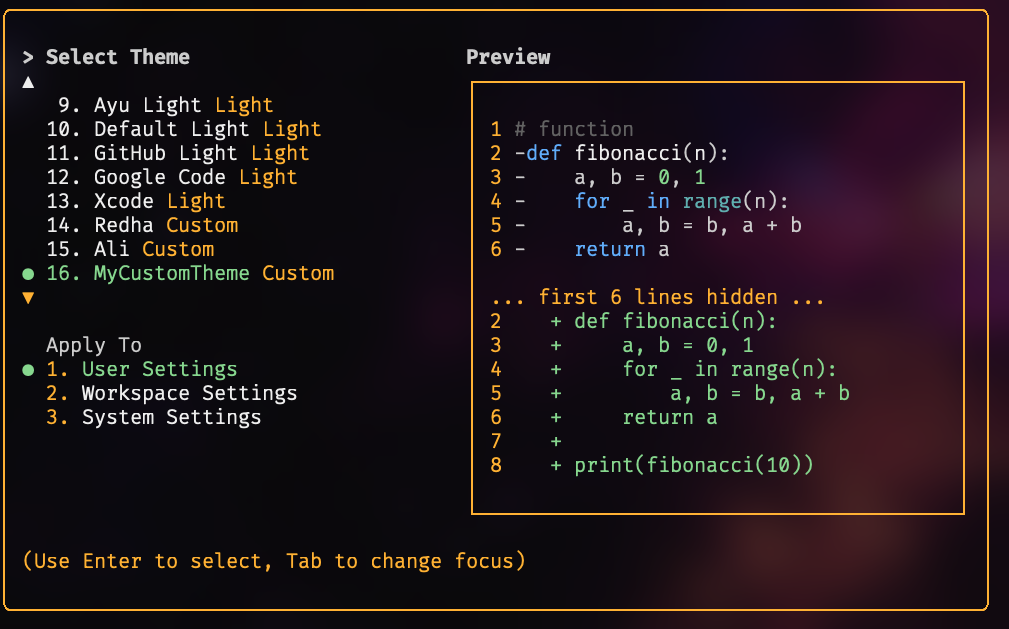
Using Your Custom Theme
- Select your custom theme using the
/themecommand in Qwen Code. Your custom theme will appear in the theme selection dialog. - Or, set it as the default by adding
"theme": "MyCustomTheme"to theuiobject in yoursettings.json. - Custom themes can be set at the user, project, or system level, and follow the same configuration precedence as other settings.
Themes Preview
| Dark Theme | Preview | Light Theme | Preview |
|---|---|---|---|
| ANSI | 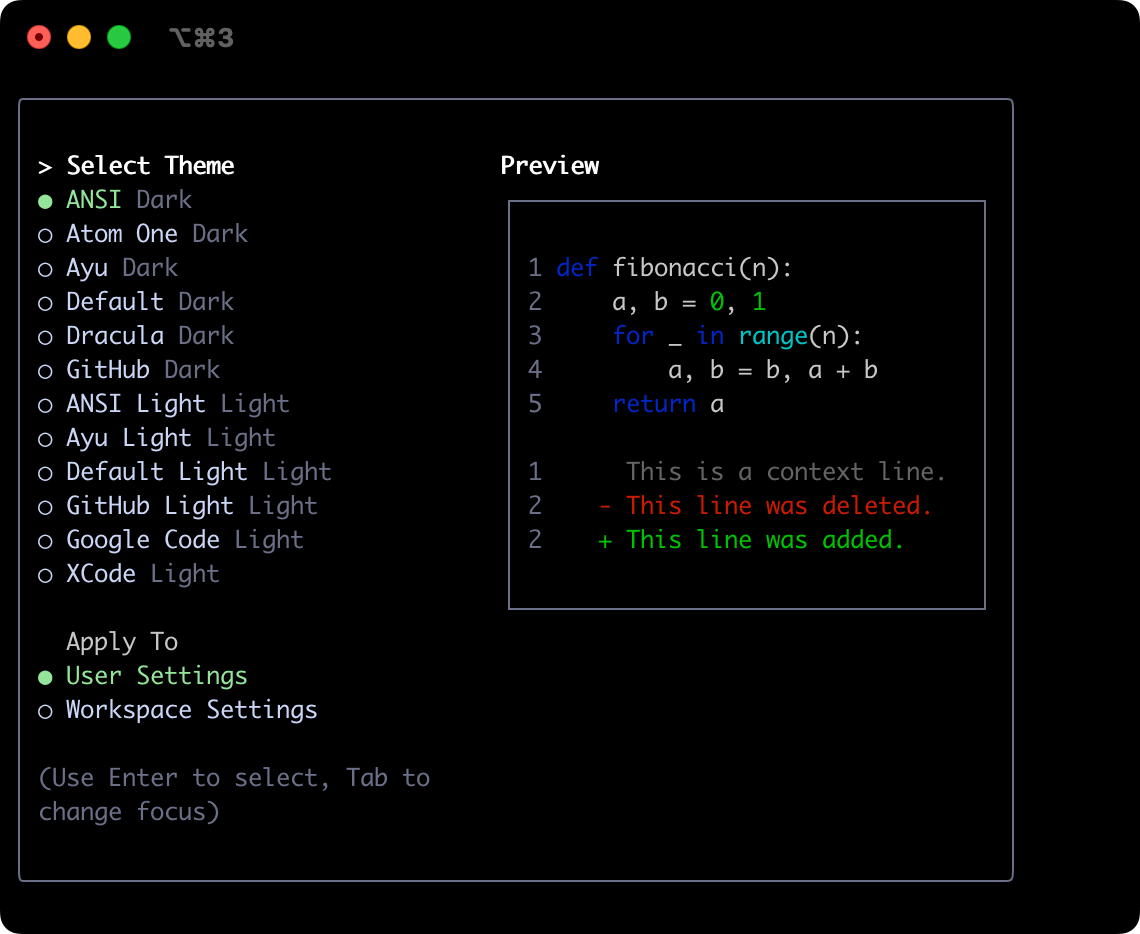 | ANSI Light | 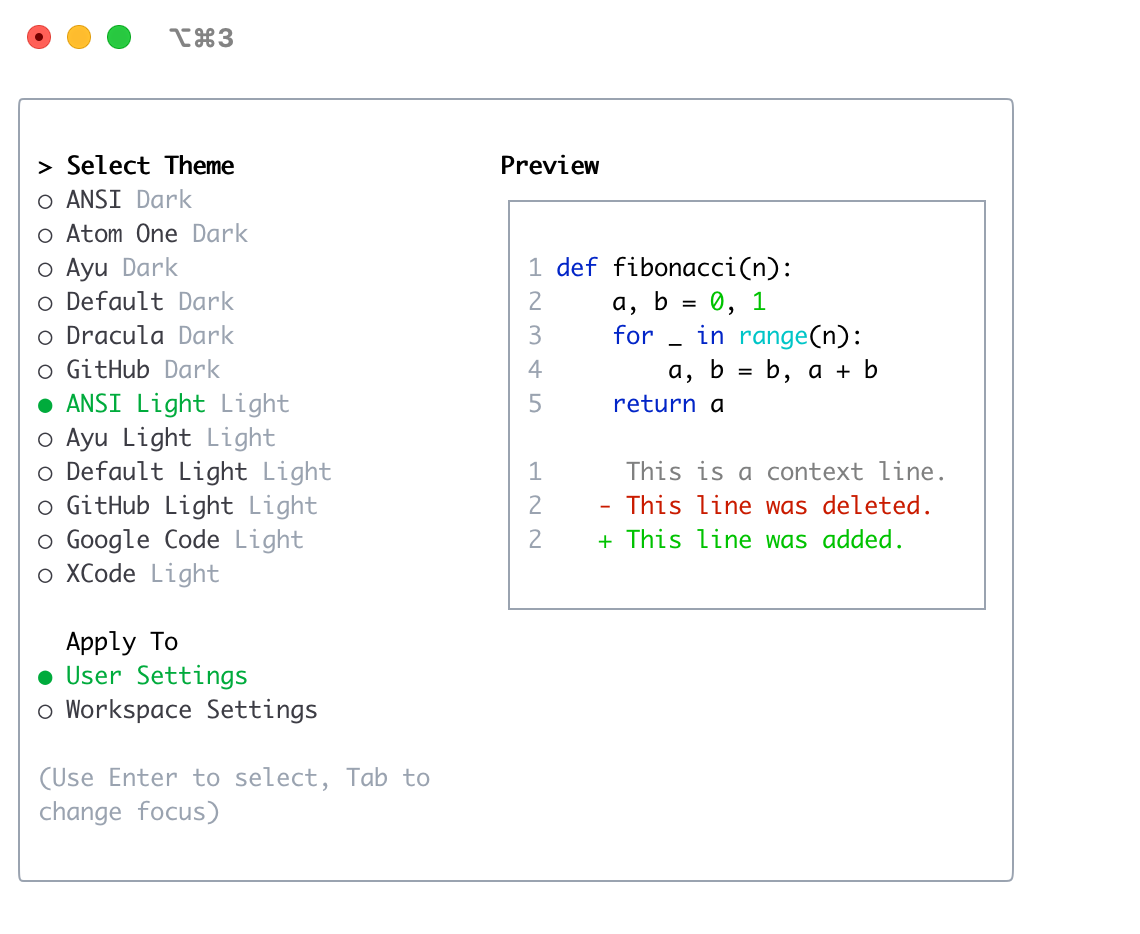 |
| Atom OneDark | 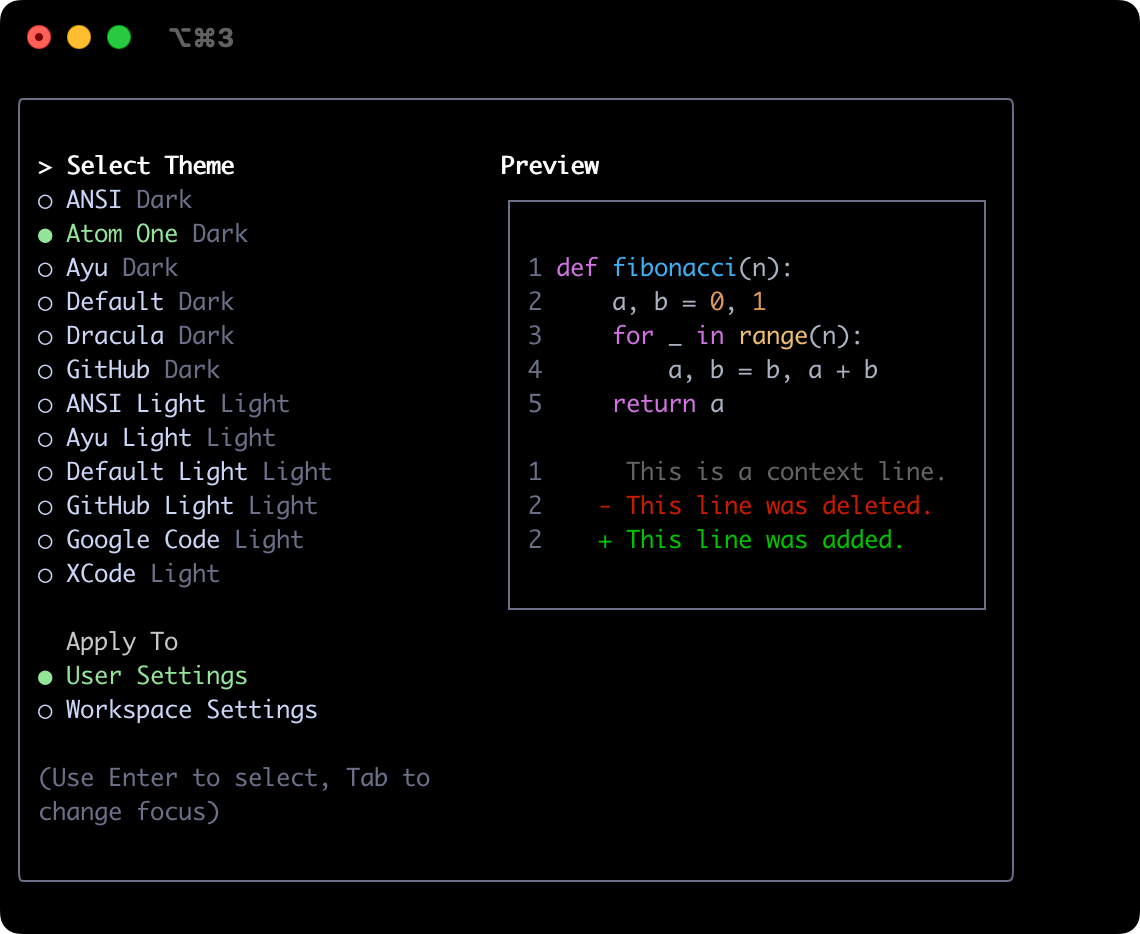 | Ayu Light | 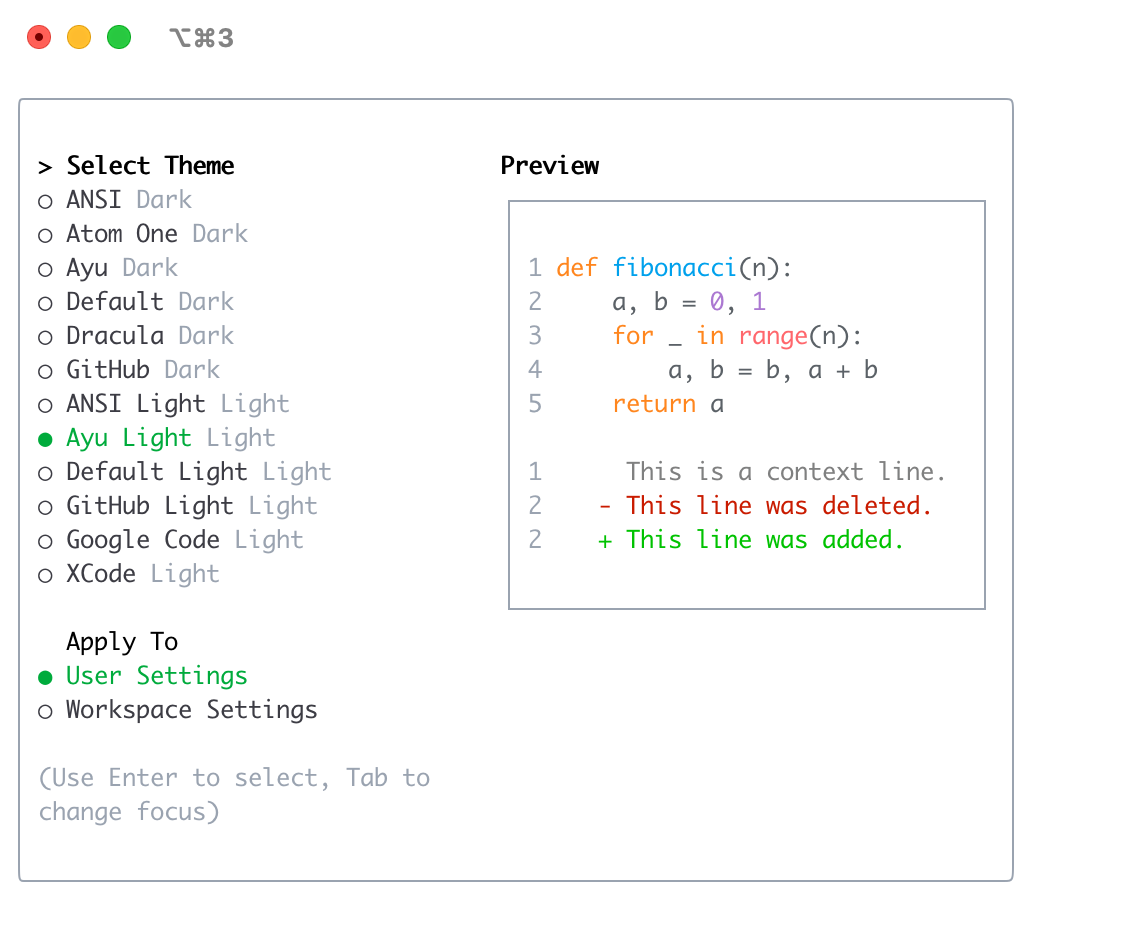 |
| Ayu | 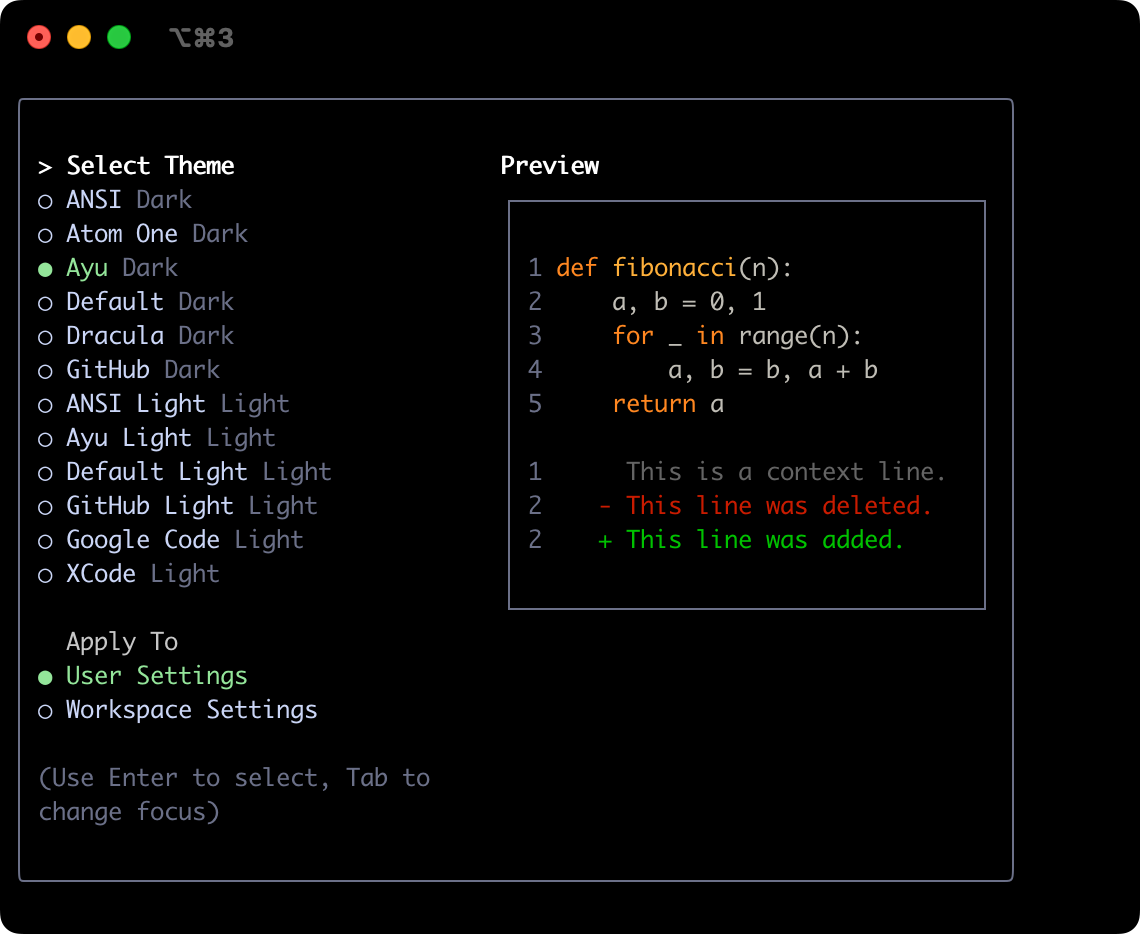 | Default Light | 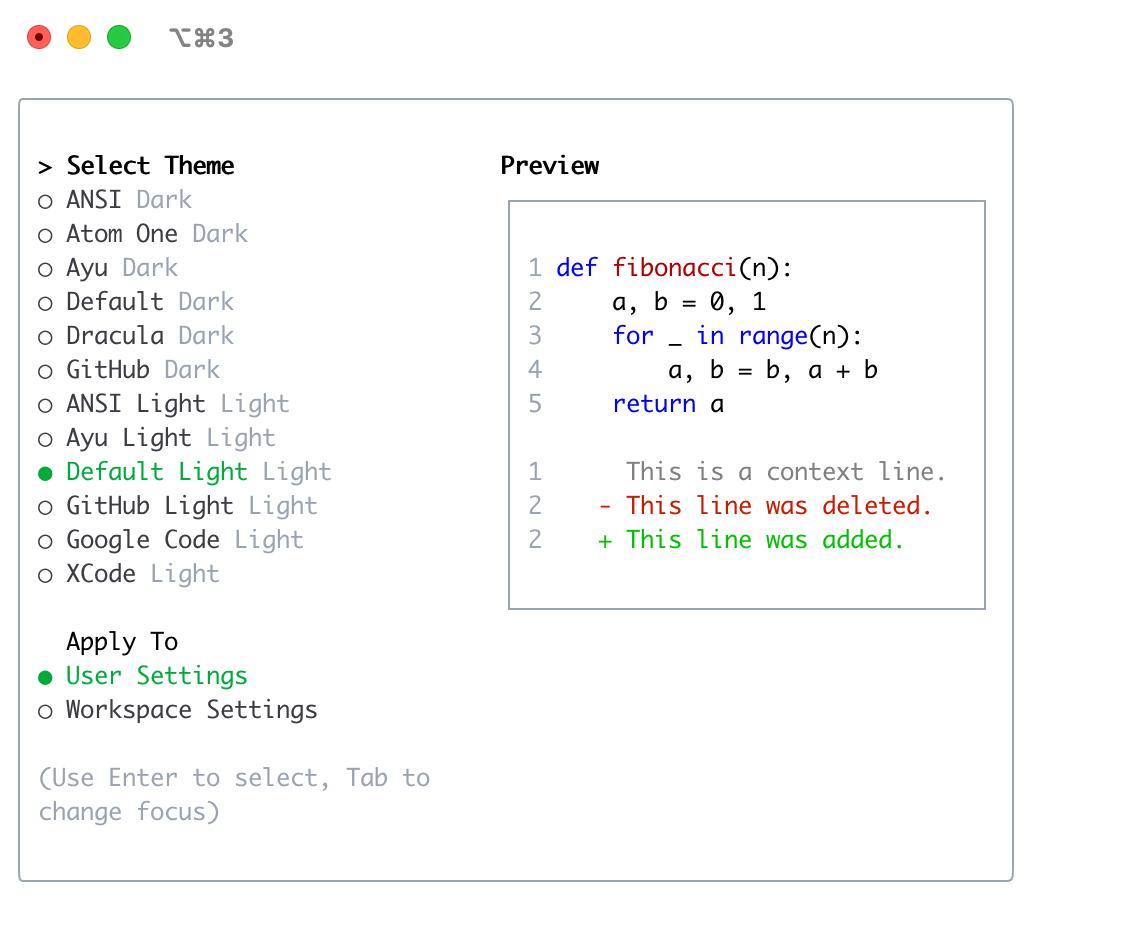 |
| Default | 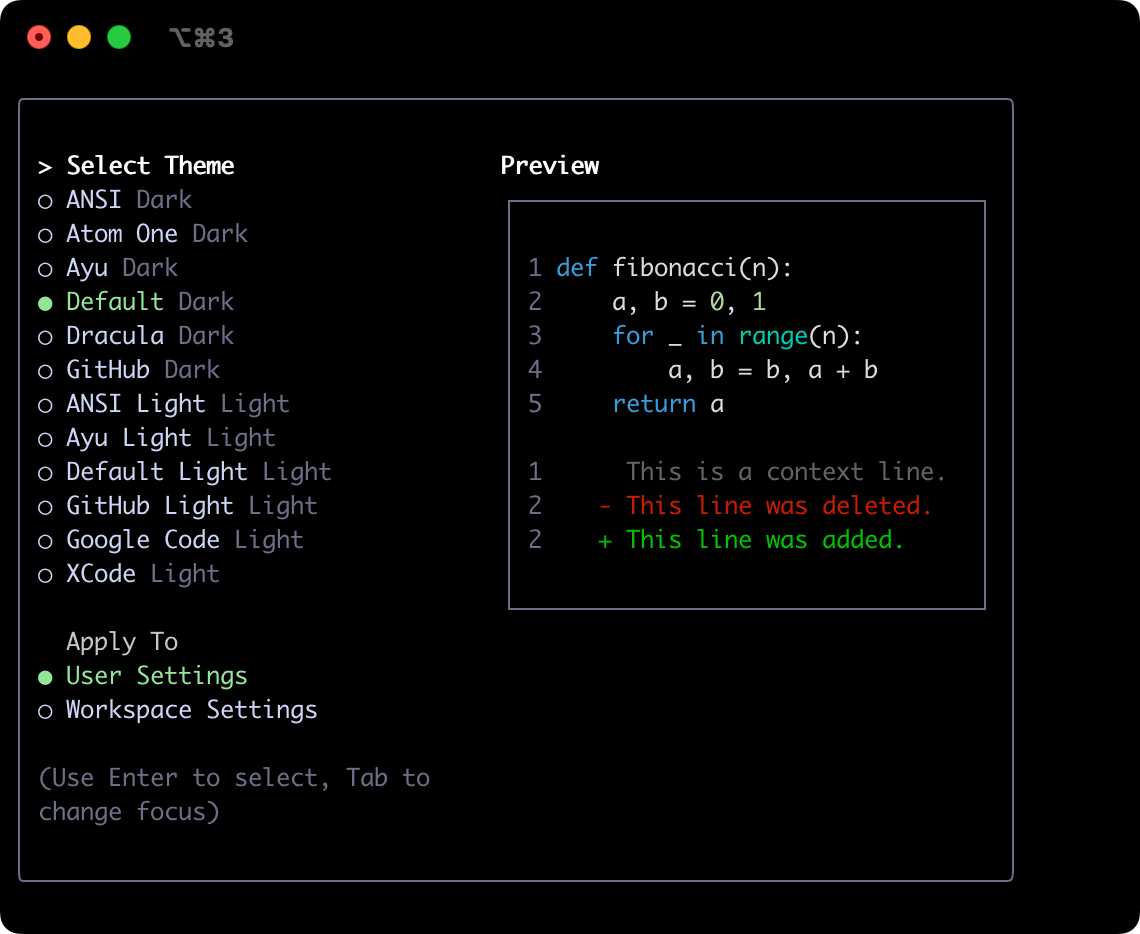 | GitHub Light | 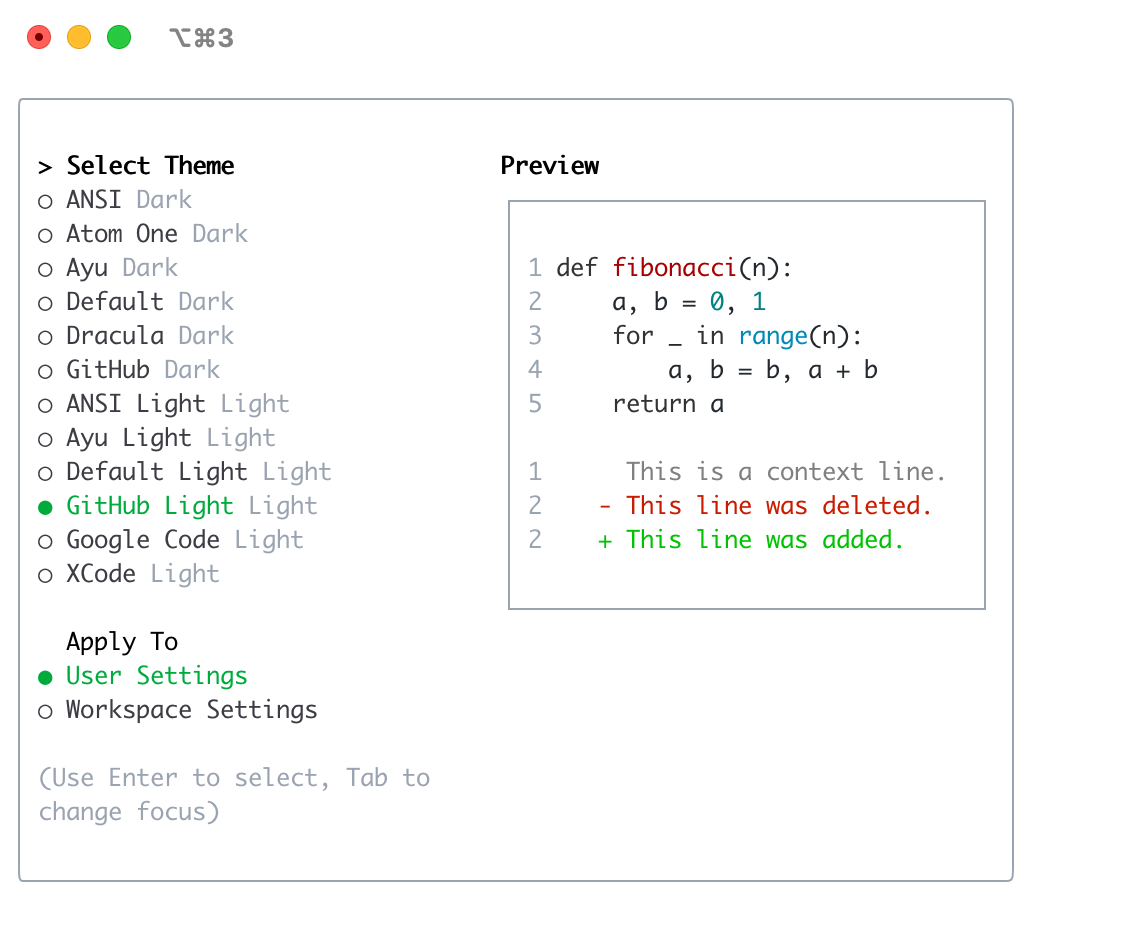 |
| Dracula | 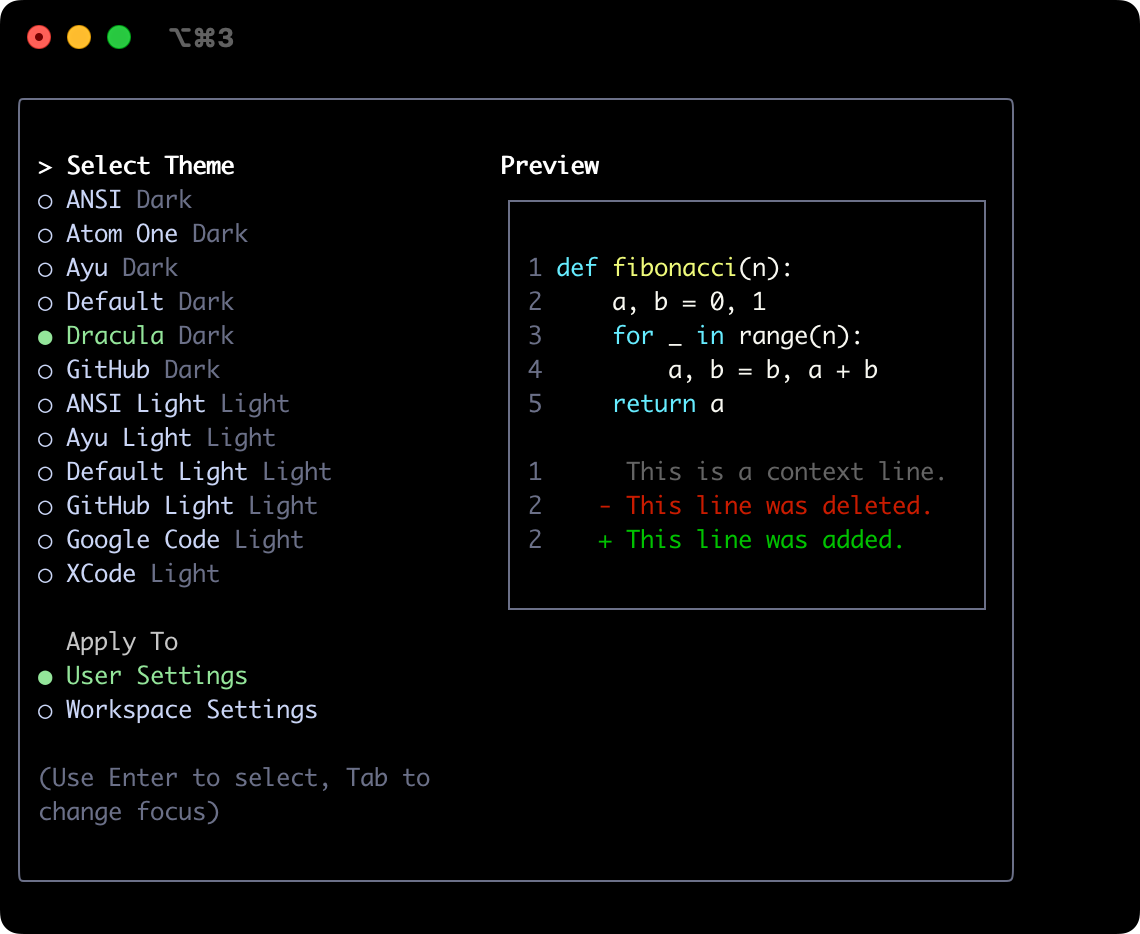 | Google Code | 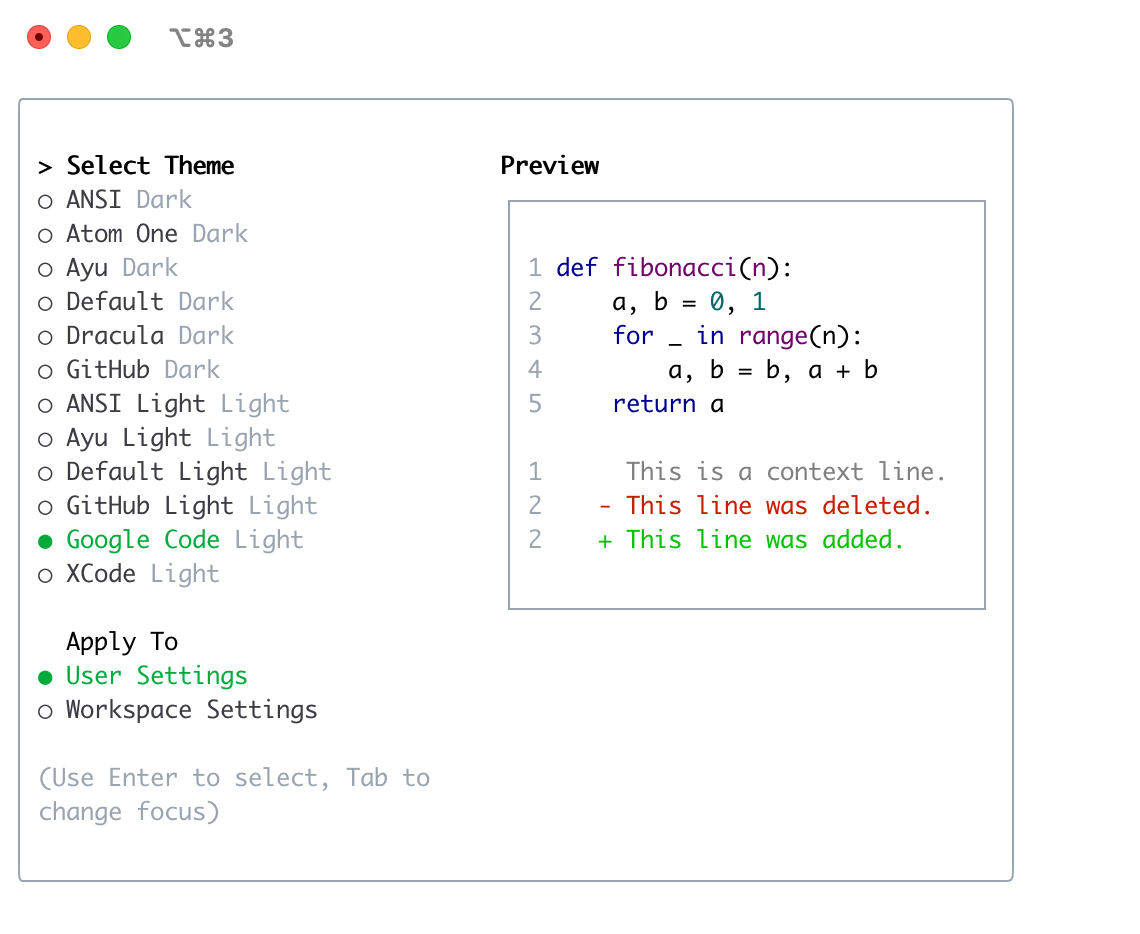 |
| GitHub | 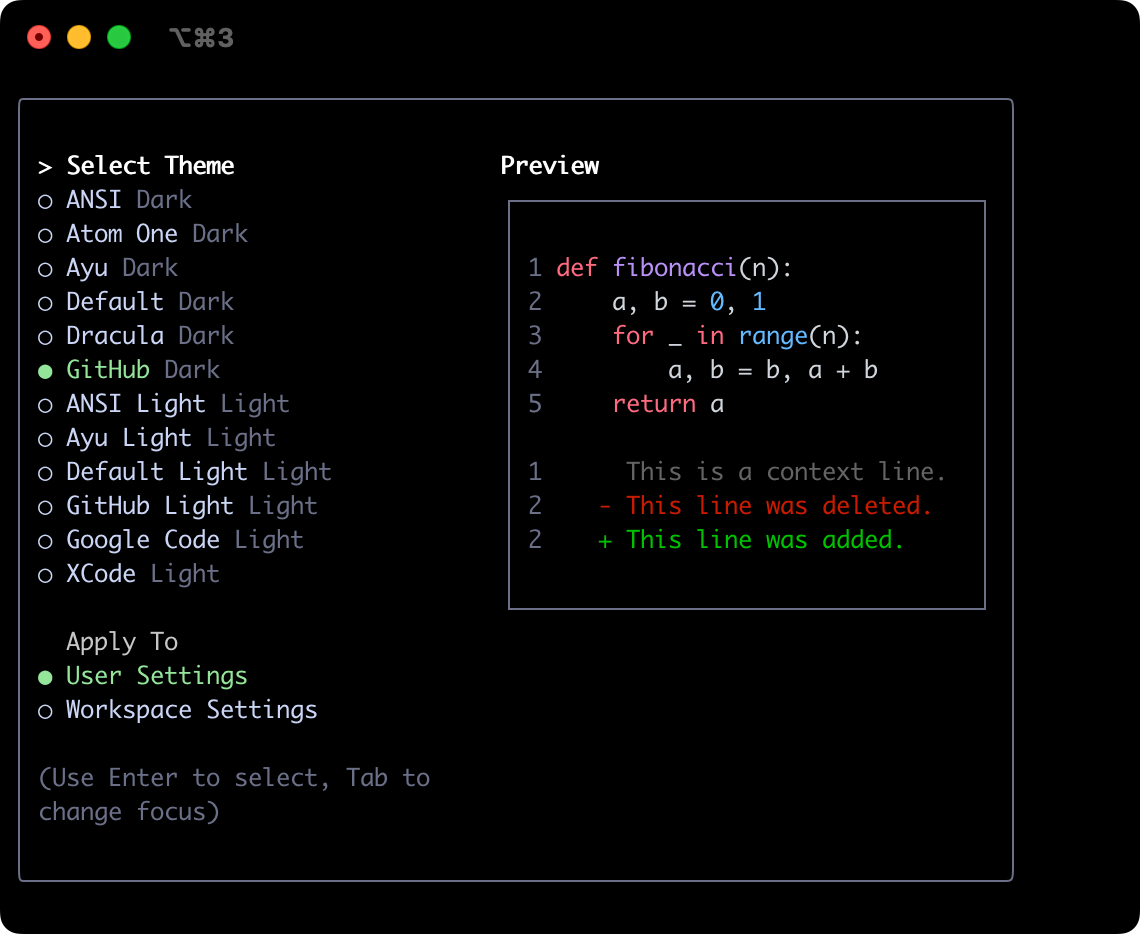 | Xcode | 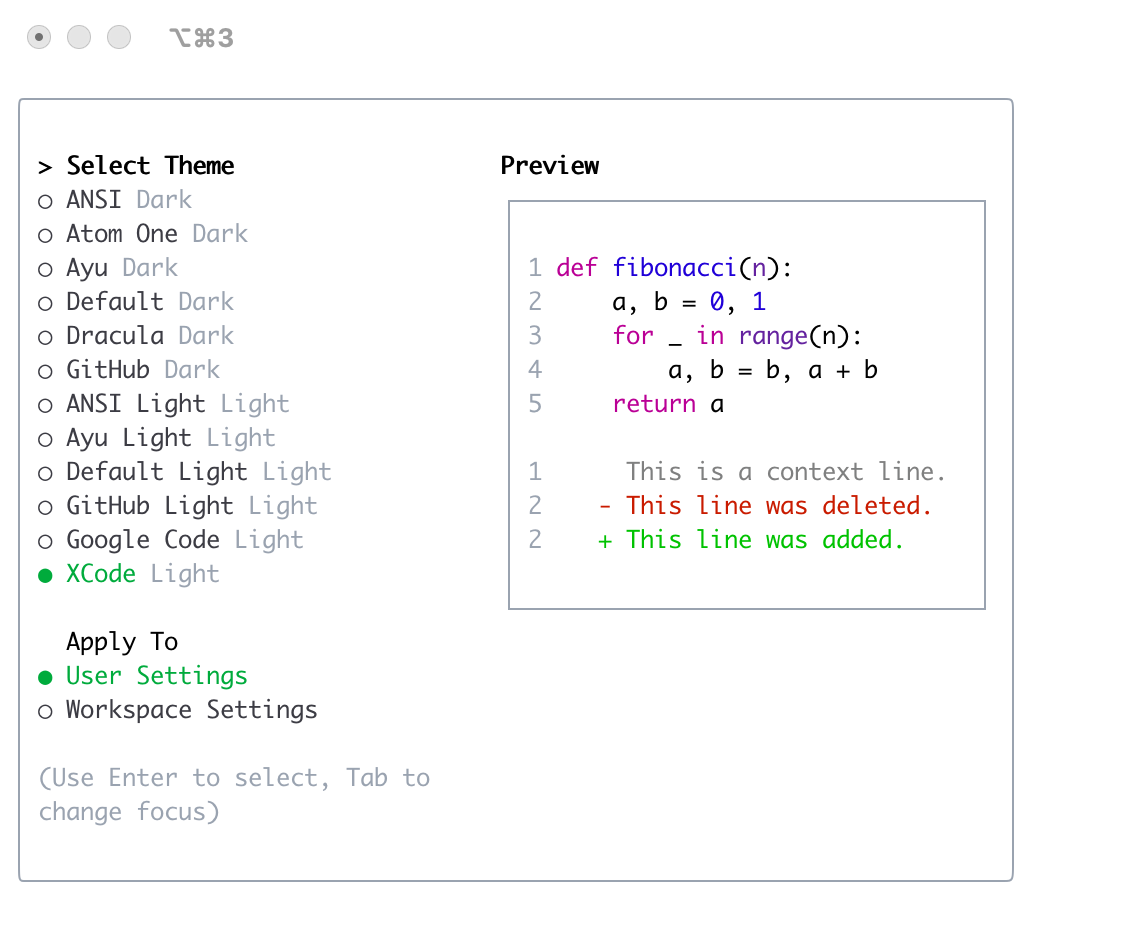 |