Feishu (Lark)
This guide covers setting up a Qwen Code channel on Feishu (飞书) / Lark.
Prerequisites
- A Feishu organization account
- A Feishu application with App ID and App Secret (see below)
Creating an Application
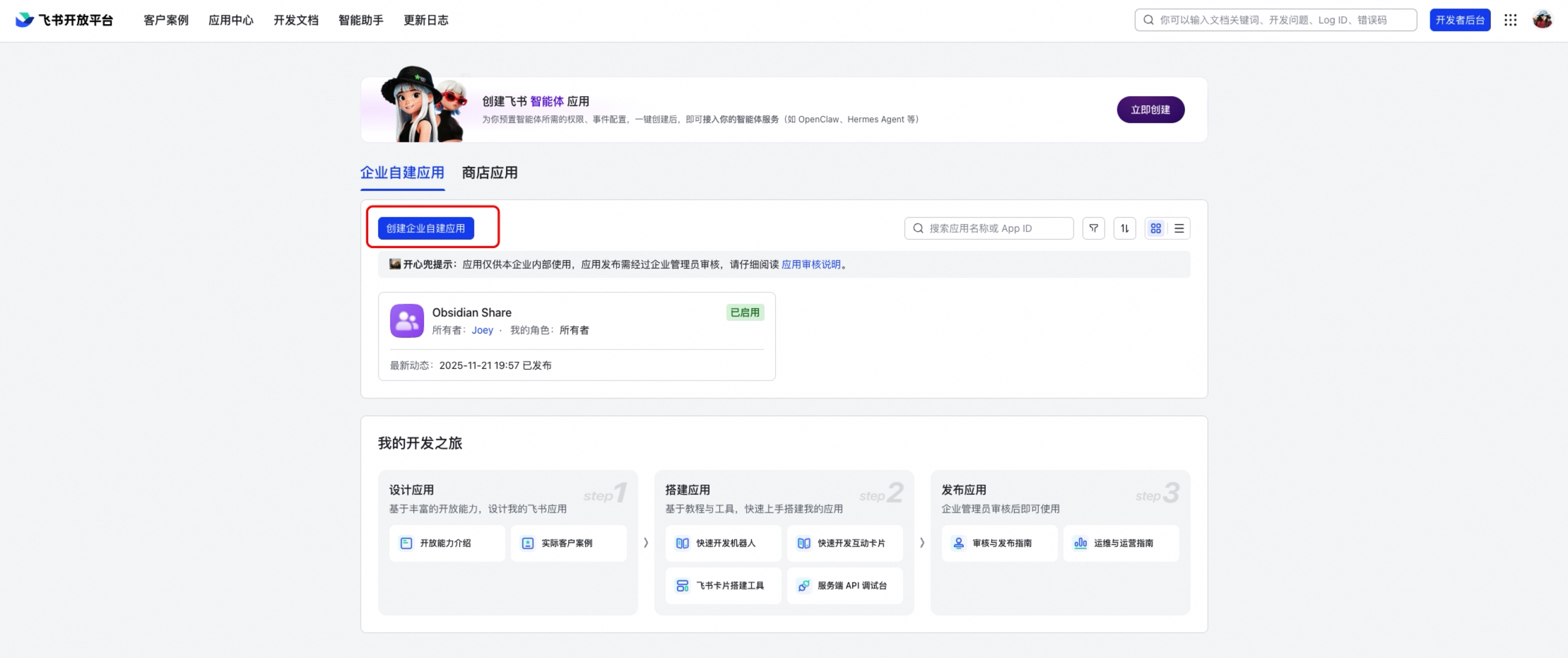
- Go to the Feishu Open Platform
- Create a new application (or use an existing one)
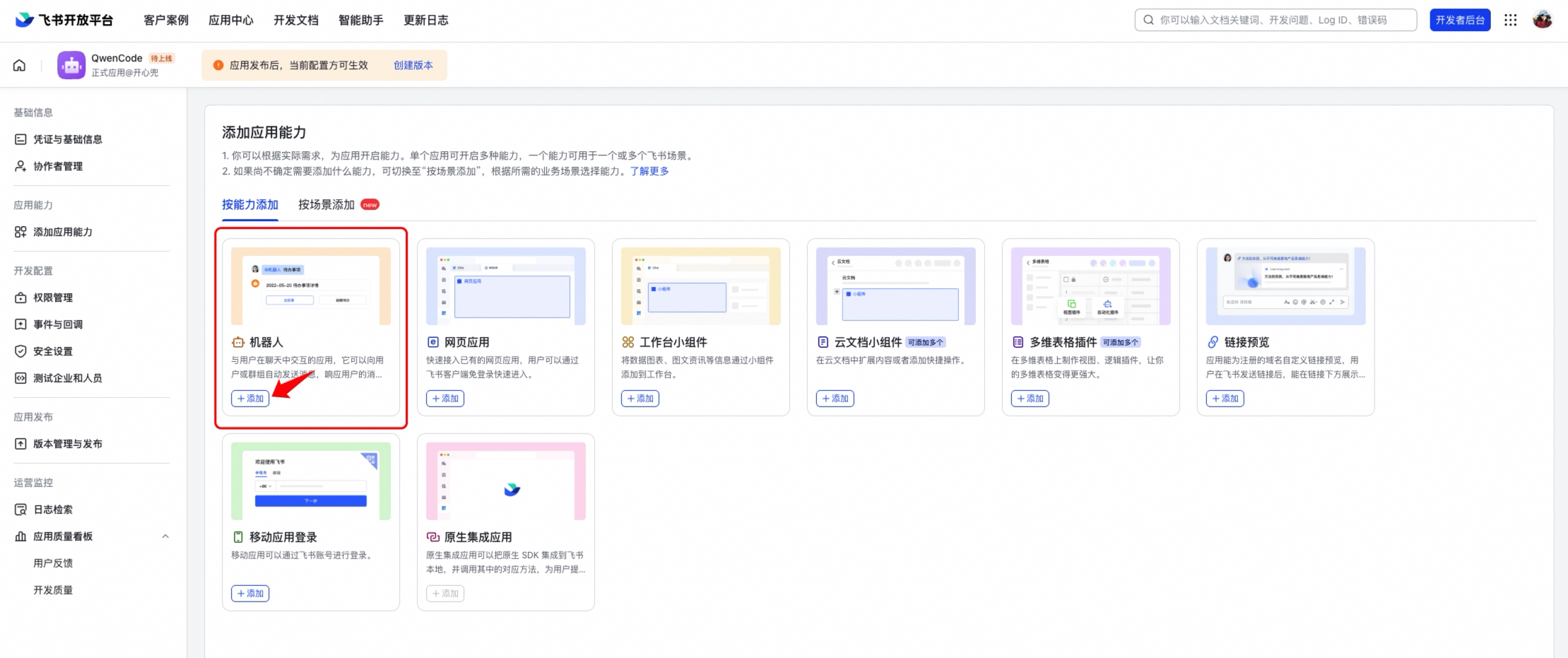
- Under the application, enable the Bot capability (添加应用能力 → 机器人)
- In Event Subscriptions (事件与回调), select Long Connection (使用长连接接收事件)
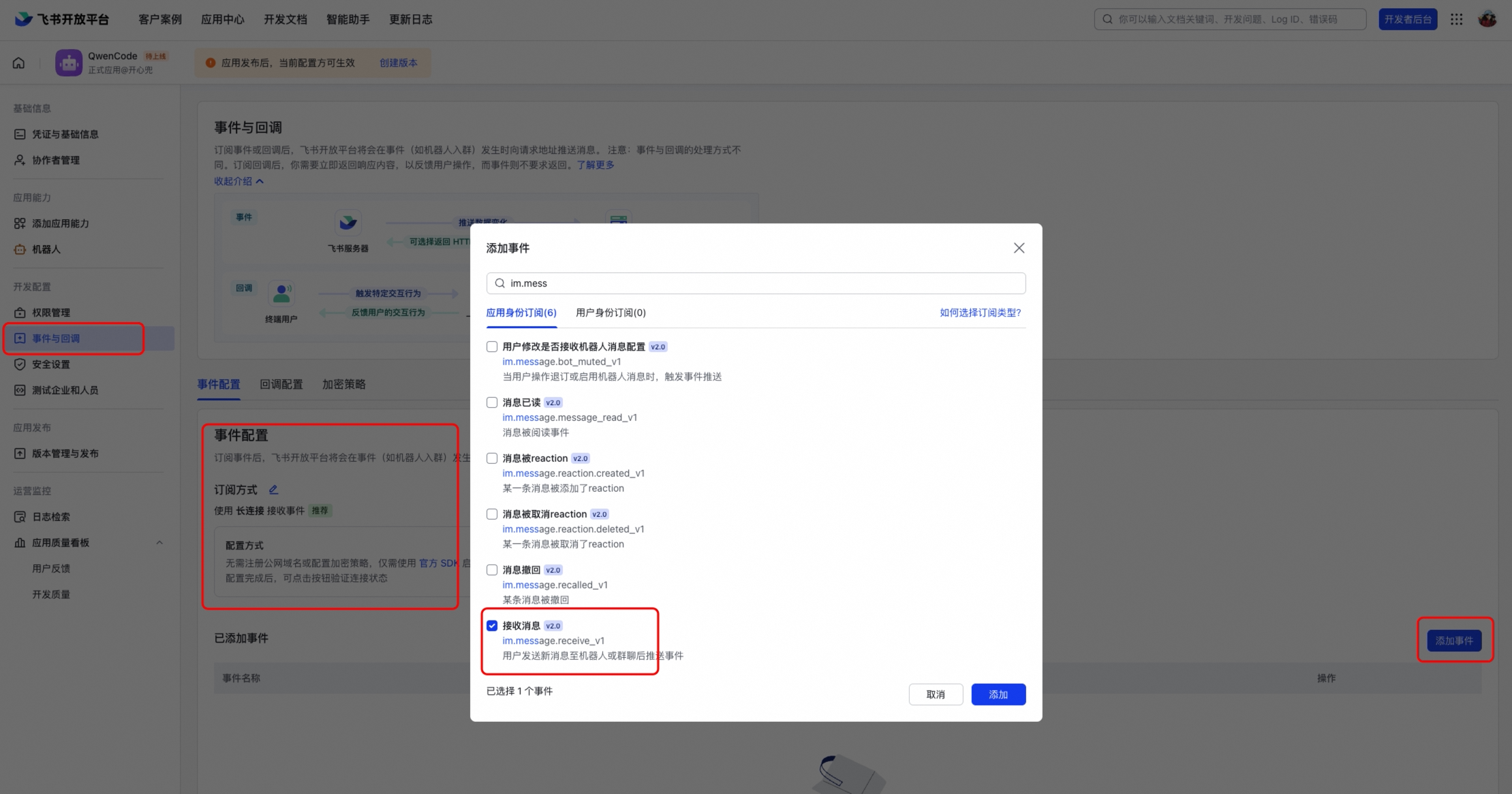
- Add the event
im.message.receive_v1(接收消息)
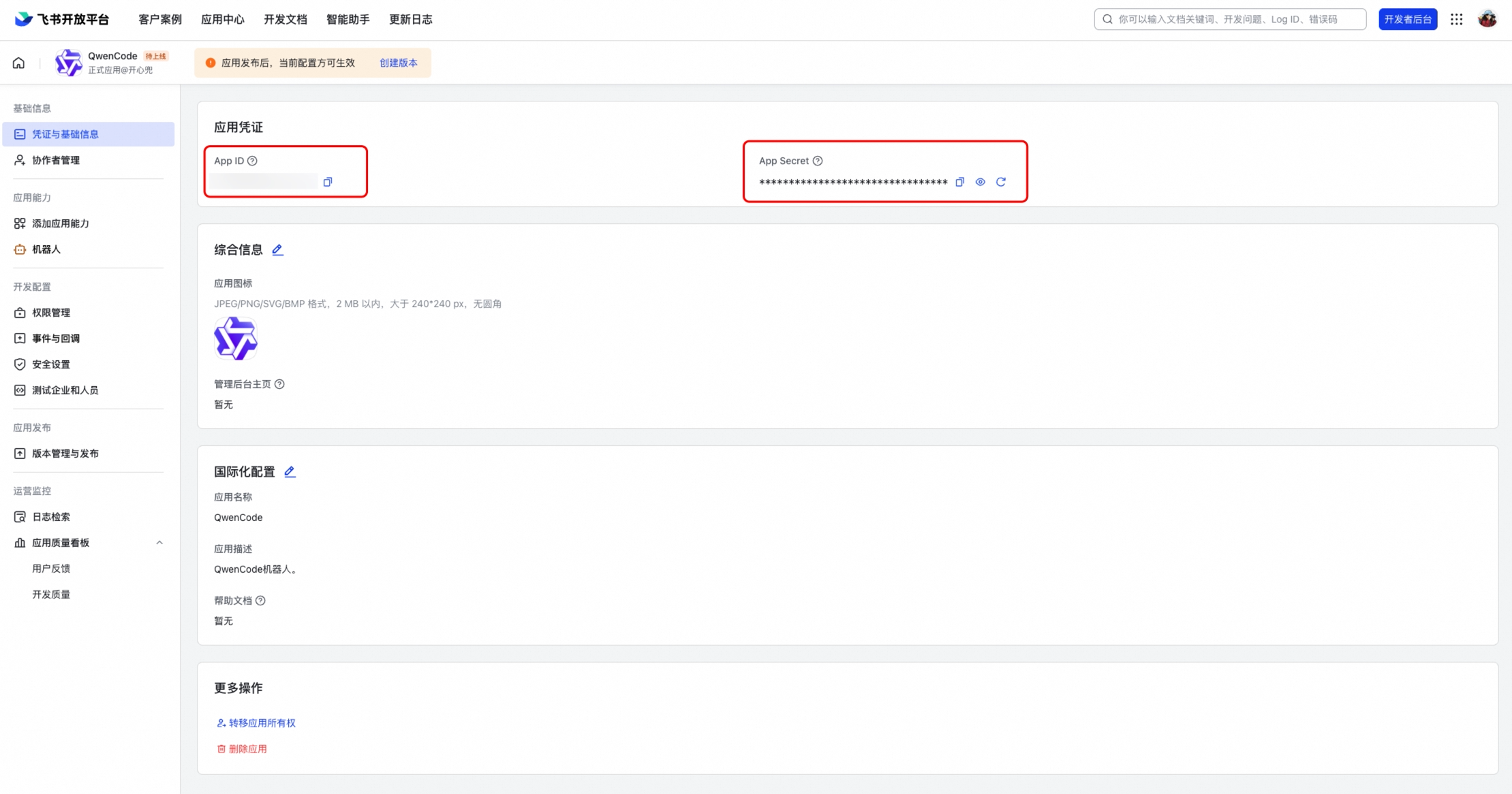
- Note the App ID (Client ID) and App Secret (Client Secret) from the application credentials page
Required Permissions
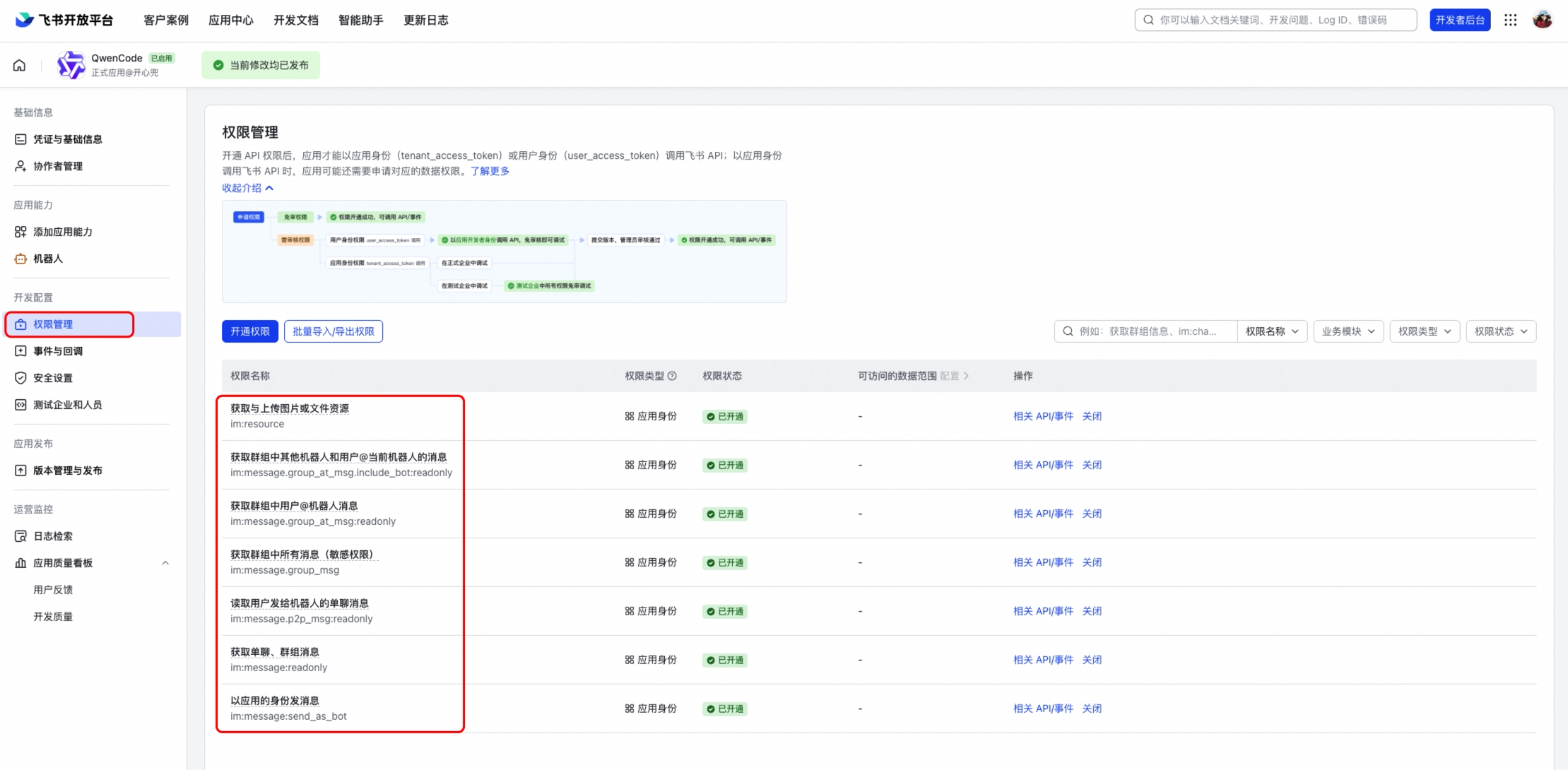
Enable the following permissions under Permissions & Scopes (权限管理):
im:message— Read and send messagesim:message:send_as_bot— Send messages as botim:resource— Access message resources (images, files)
To show user and group names instead of IDs in daemon-discovered contacts, optionally enable:
contact:user.basic_profile:readonly— Read user display namesim:chat:readonly— Read group names
Without these optional permissions, messages still work and discovered contacts keep their Feishu user and chat IDs as labels.
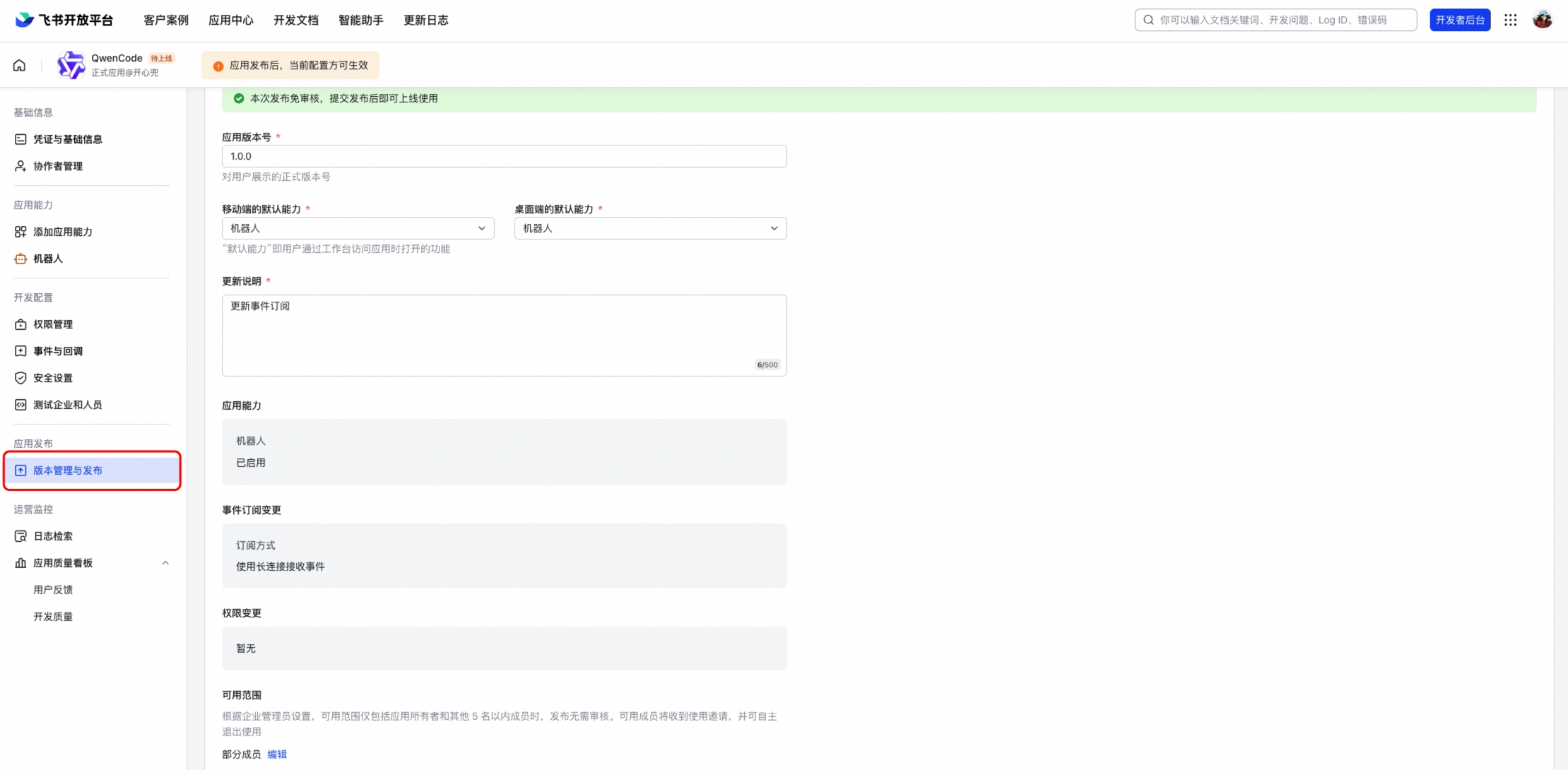
Publish the Application
After configuring permissions and events, create a version and publish it. The bot won’t work until the application is published and approved.
Configuration
Add the channel to ~/.qwen/settings.json:
{
  "channels": {
    "my-feishu": {
      "type": "feishu",
      "clientId": "<your-app-id>",
      "clientSecret": "<your-app-secret>",
      "privatePolicy": "open",
      "sessionScope": "user",
      "cwd": "/path/to/your/project",
      "groupPolicy": "open",
      "collapsible": true,
      "groups": {
        "*": { "requireMention": true }
      }
    }
  }
}
Configuration Options
| Option | Description |
|---|---|
clientId | Feishu App ID |
clientSecret | Feishu App Secret |
collapsible | Collapse long responses into expandable sections (default: false) |
collapsibleThreshold | Character threshold for collapsing (default: 500) |
webhookPort | If set, use HTTP webhook mode instead of WebSocket |
verificationToken | Verification token for webhook mode |
encryptKey | Encrypt key for webhook mode |
Running
# Start only the Feishu channel
qwen channel start my-feishu

# Or start all configured channels together
qwen channel start
Open Feishu and send a message to the bot. You should see a streaming interactive card with the response.
Connection Modes
WebSocket (Default)
WebSocket mode uses an outbound long connection — no public URL or server is needed. This is the recommended mode for most deployments.
Webhook
If you need webhook mode (e.g., for shared applications), set webhookPort in your config:
{
  "channels": {
    "my-feishu": {
      "type": "feishu",
      "webhookPort": 9321,
      "verificationToken": "<from-feishu-console>",
      "encryptKey": "<from-feishu-console>"
    }
  }
}
Then set the request URL in Feishu Open Platform to http://<your-server>:9321.
Group Chats
Feishu bots work in both DM and group conversations. To enable group support:
- Set
groupPolicyto"allowlist","pairing", or"open"in your channel config - Add the bot to a Feishu group
- @mention the bot in the group to trigger a response
- If using
groupPolicy: "pairing", approve the group’s pairing request once before responses start
By default, the bot requires an @mention in group chats (requireMention: true). Set "requireMention": false for a specific group to make it respond to all messages.
Features
Interactive Card Streaming
Responses are rendered as Feishu interactive cards with real-time streaming updates. The card shows a “generating” indicator while the response is being produced, and a Stop button to cancel generation.
Quote/Reply Context
When you reply to (quote) a message, the quoted content is automatically included as context for the agent. This works for:
- Text and rich-text messages
- Interactive cards (bot’s previous responses)
Images and Files
You can send photos and documents to the bot:
- Images: Analyzed using multimodal vision capabilities
- Files: Downloaded and saved locally for the agent to read
On systems with POSIX permissions, downloaded files and their temporary folders are accessible only to the account running Qwen Code. If a downloaded file cannot be saved locally, the message still reaches the agent with an indication that the media is unavailable. Any quoted message is preserved.
Concurrent Messages
Multiple users can send messages simultaneously in the same group chat. Each message gets its own independent card and response — they don’t interfere with each other.
Key Differences from DingTalk
- Response format: Uses Feishu interactive cards (v2 schema) with native markdown rendering, including tables
- Streaming: Card content is updated in-place with throttled PATCH requests (1.5s interval)
- Connection: WebSocket via
@larksuiteoapi/node-sdk— same outbound-only model, no public URL needed - Working indicator: An “OnIt” emoji reaction is added while processing
- Quote context: Supports quoting both text messages and interactive cards
Troubleshooting
Bot doesn’t connect
- Verify your App ID and App Secret are correct
- Make sure Long Connection is selected in Event Subscriptions
- Check that the
im.message.receive_v1event is subscribed - Check the terminal output for connection errors
Bot doesn’t respond in groups
- Check that
groupPolicyis set to"allowlist","pairing", or"open"(default is"disabled") - If using
"pairing", verify the group’s pairing request has been approved - Make sure you @mention the bot in the group message
- Verify the bot has been added to the group
Card stays in “generating” state
- This usually indicates the response completed but the final card update failed
- Check terminal logs for API errors (rate limiting, card size limits)
- Very long responses with many tables may hit Feishu’s card element limits
Quote doesn’t include card content
- The bot reads card content via the
card_msg_content_type=user_card_contentAPI parameter - Ensure the bot has
im:messagepermission to read messages