Beyond the Terminal: Qwen Code on Desktop and in the Web Shell
In the getting-started post, Qwen Code is one screen inside your terminal. This post covers the other two: the desktop app and the Web Shell in the browser.
Choose between the two
| If you want | Use |
|---|---|
| an app icon that opens it in one click | Desktop app |
| the CLI, then a browser once a startup command runs | Web Shell |
Both do the same work and look the same. The Web Shell is the lighter of the two; the desktop app needs a download.
Install the desktop app
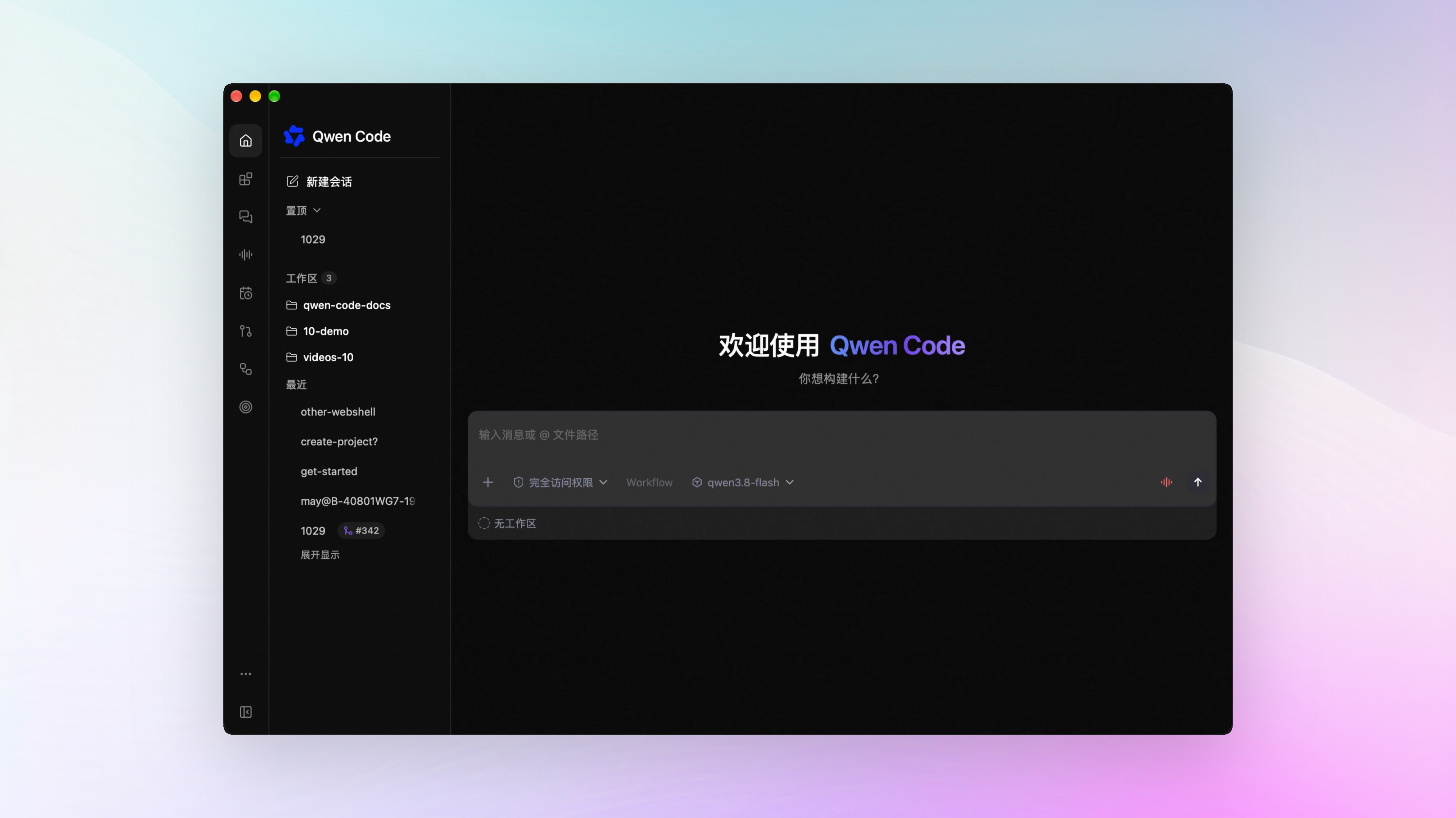
Get the installer for your platform from Qwen Code Desktop latest . macOS, Windows, and Linux are all there. Install it, open it, and start a conversation. New versions download and install themselves.
Start the Web Shell
Go to the project directory you want Qwen Code to work in:
cd your-project
qwen serve --open
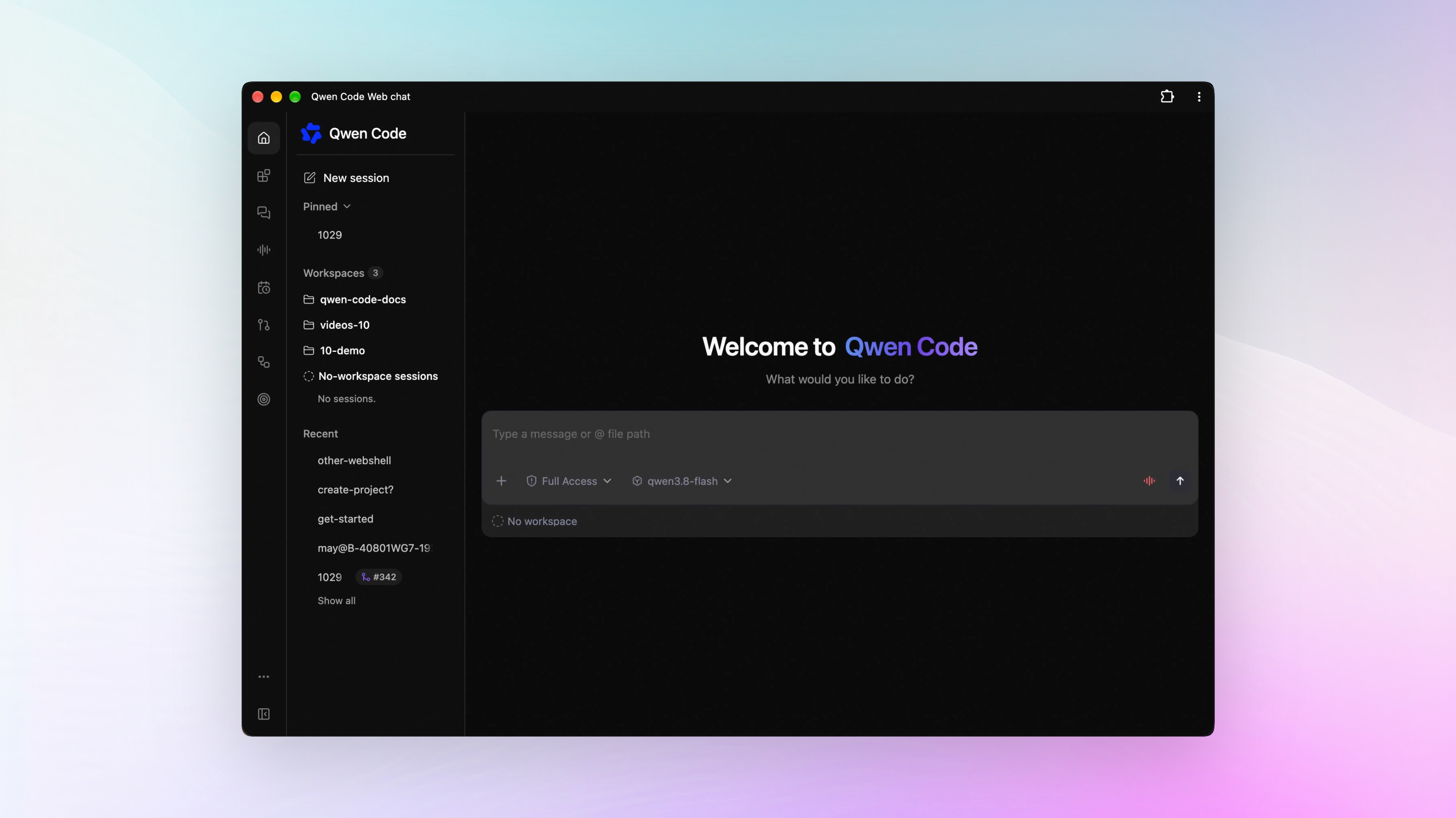
Your browser opens http://127.0.0.1:4170/ on its own.
The left side holds your sessions and the projects you added. The conversation runs in the middle. The right side shows project files and file changes.
Need another project? Don’t start a second service — click Add workspace in the sidebar. Each workspace sticks to its own directory, and switching to one is enough to get to work.
If you prefer commands, pass several directories when you start the service:
qwen serve --workspace ~/code/site --workspace ~/code/apiYou can also install the Web Shell as an app on your computer. An install entry shows up at the right end of the address bar. Click it and you get your own icon and a standalone window, still talking to the service that is already running.
One interface can connect to Qwen Code on several machines at the same time.
Run the service in the background
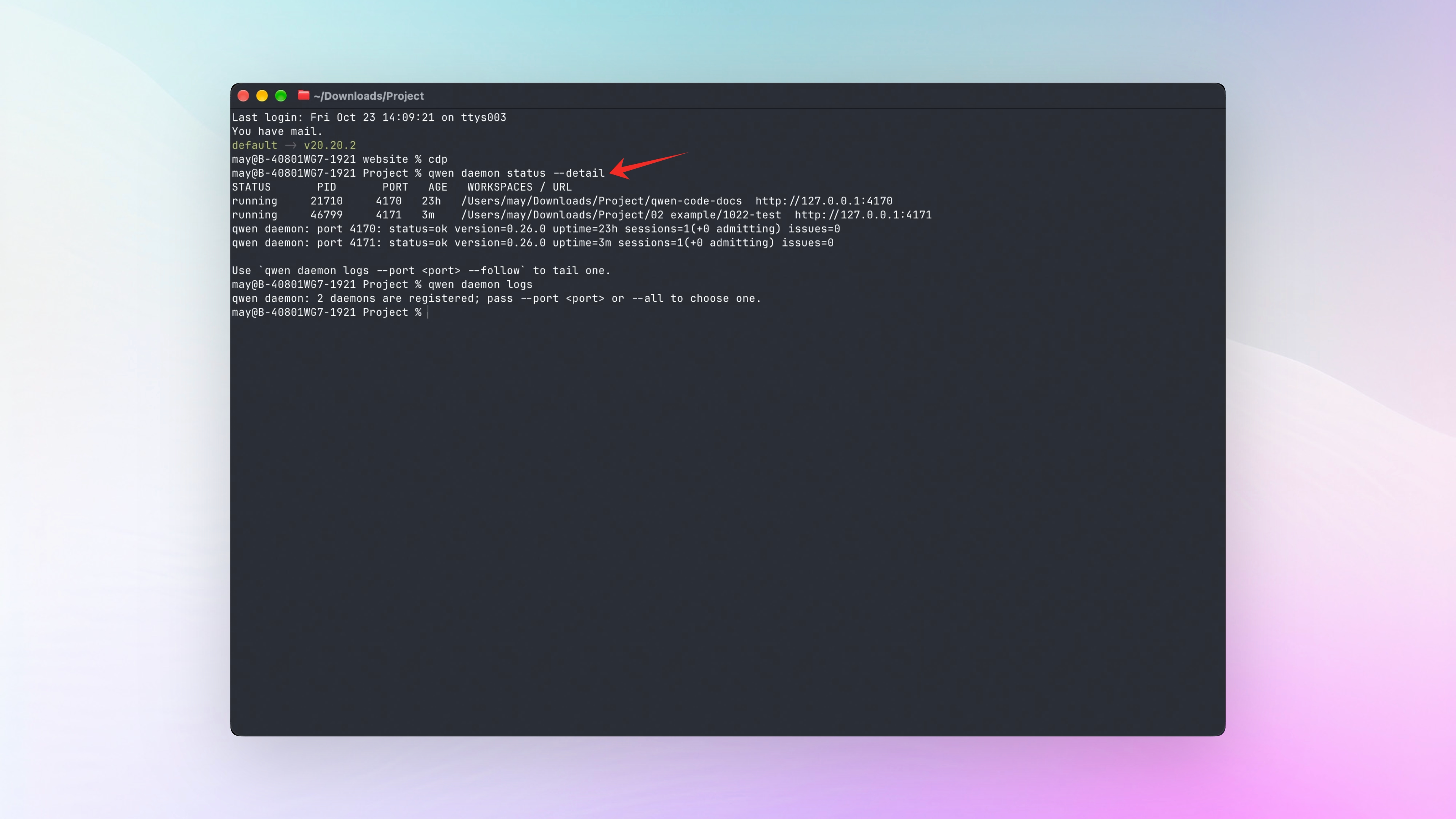
qwen serve holds that terminal window. Close the window and the service stops. To run it in the background, use this set of commands:
qwen daemon start      # start in the background and print the address
qwen daemon status     # show how many are running on this machine
qwen daemon logs       # show the logs
qwen daemon stop       # stop a given service
Think of the print service on your computer. It stays on, so any print job finds it waiting. Close the web page and the task keeps running.
Take it to your phone
Want to use Qwen Code on your phone? Read Qwen Code in Your Pocket.